
Collections, Playlists & Tags
Three ways to organize your library, and when to use each
Bold gives you three organizational tools. They look similar but serve different jobs:
| Tool | What it is | Use it for |
|---|---|---|
| Collections | Groups a video belongs to | Course modules, event archives, content areas |
| Playlists | Ordered sequences you curate | Learning paths, featured series, onboarding flows |
| Tags | Freeform labels | Cross-cutting themes, filtering, API queries |
A video can be in many collections, many playlists, and carry many tags at once.
Collections
Create collections from the sidebar of the Videos page (click New Collection), then add videos either from the collection itself or from a video's edit page (sidebar → Collections).
Collections shine as filters: the library sidebar, the portal, the API (?collection_id=), and AI features (scope a chat or recommendation to one collection) all understand them.
Playlists
Playlists live in their own section of the admin panel.
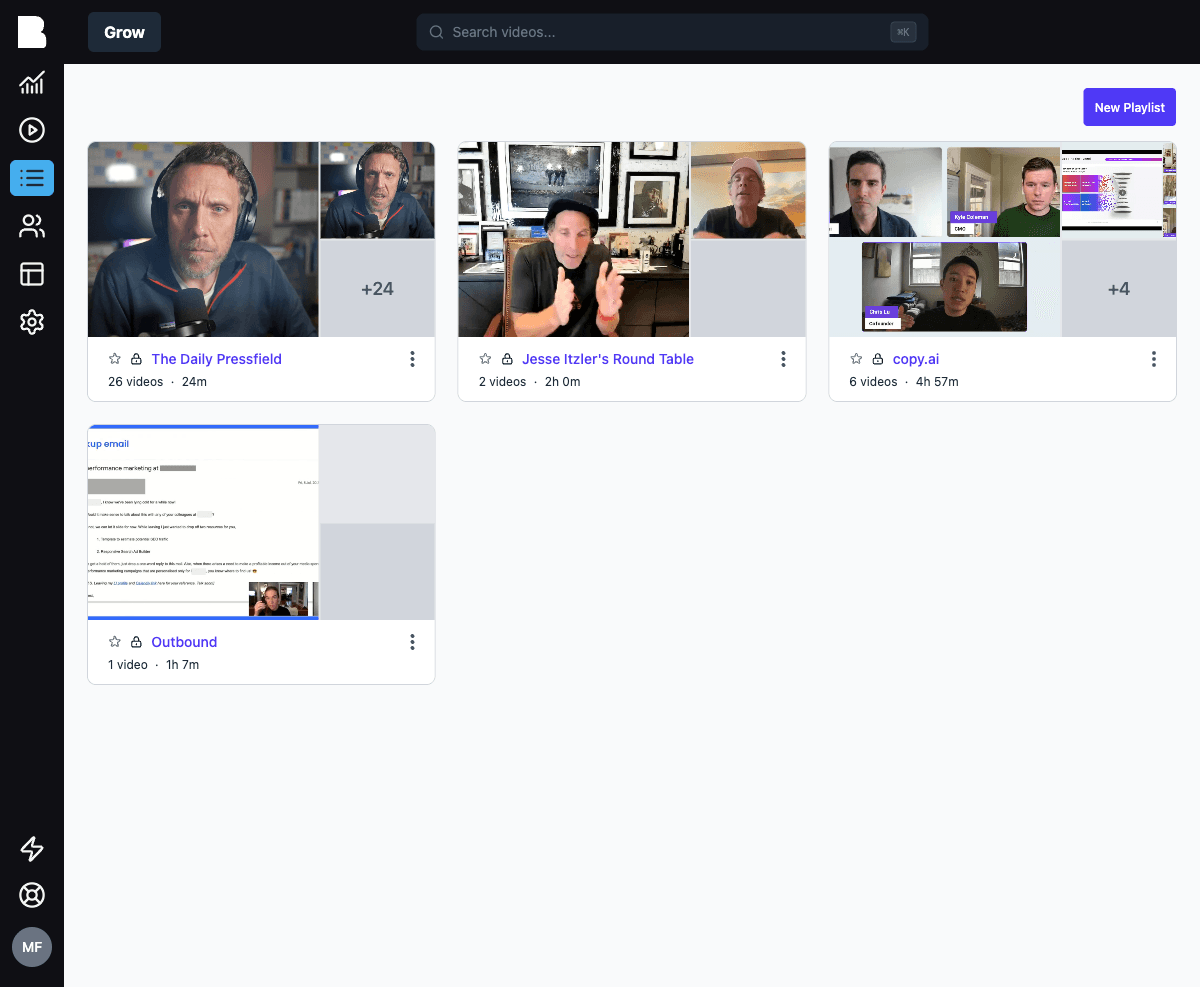
Click New Playlist, give it a title, description, and cover image, then add videos. Drag to reorder. The order is what viewers see.
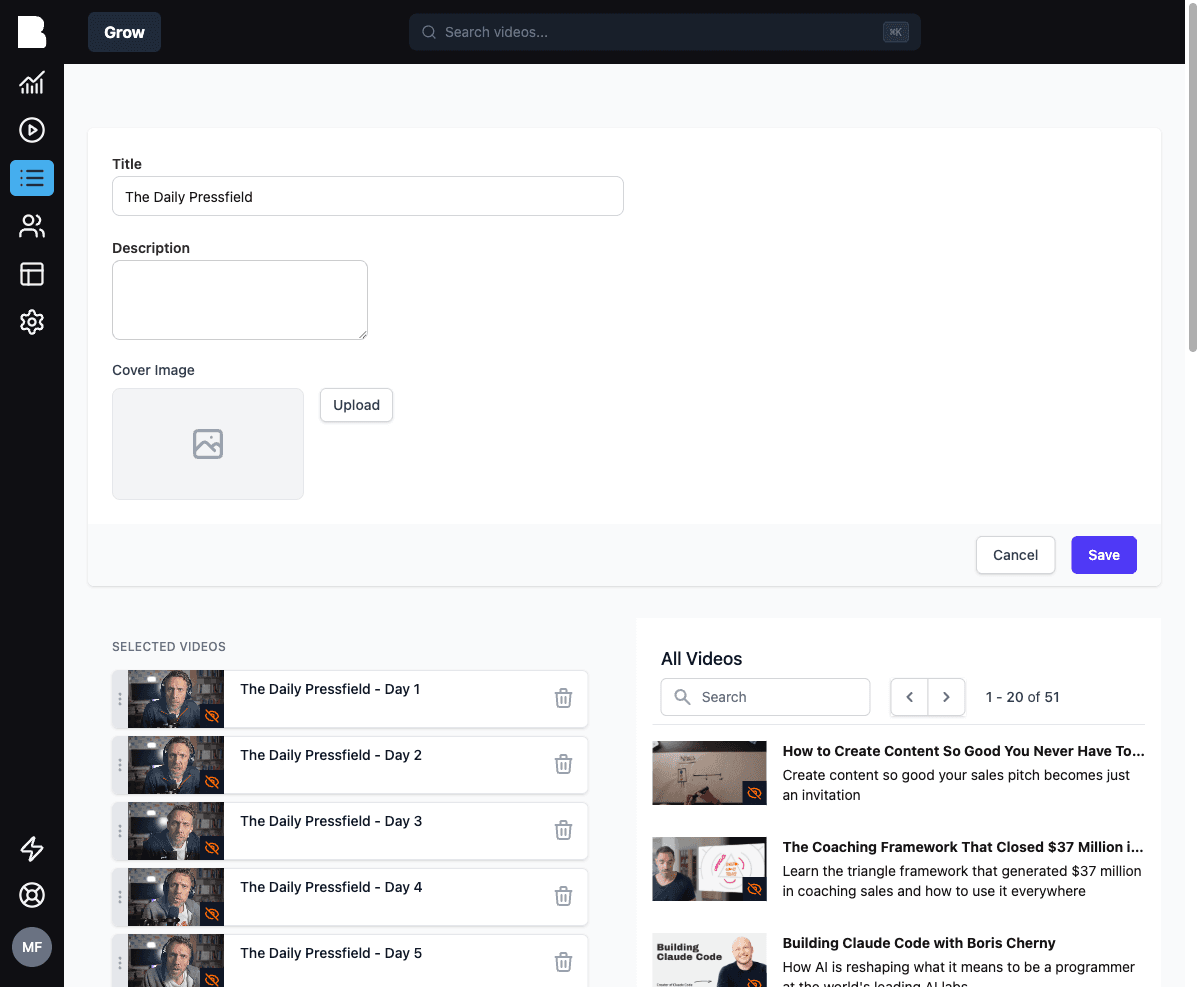
Featured playlists
Under Settings → Featured Playlists you choose which playlists appear prominently in your portal (and in the featured_playlists field of the Settings API). Click a playlist to feature it, drag to order, hit Save.
Tags
Add tags on the video edit page (sidebar → Tags). Tags appear as filters in your library sidebar and can be used to scope API queries and AI features (tags: ['sales']).