
Managing Videos
The video library and edit page: metadata, AI actions, privacy, and publishing
The Videos section is your library; the video edit page is where each video comes together. This guide covers both.
The video library
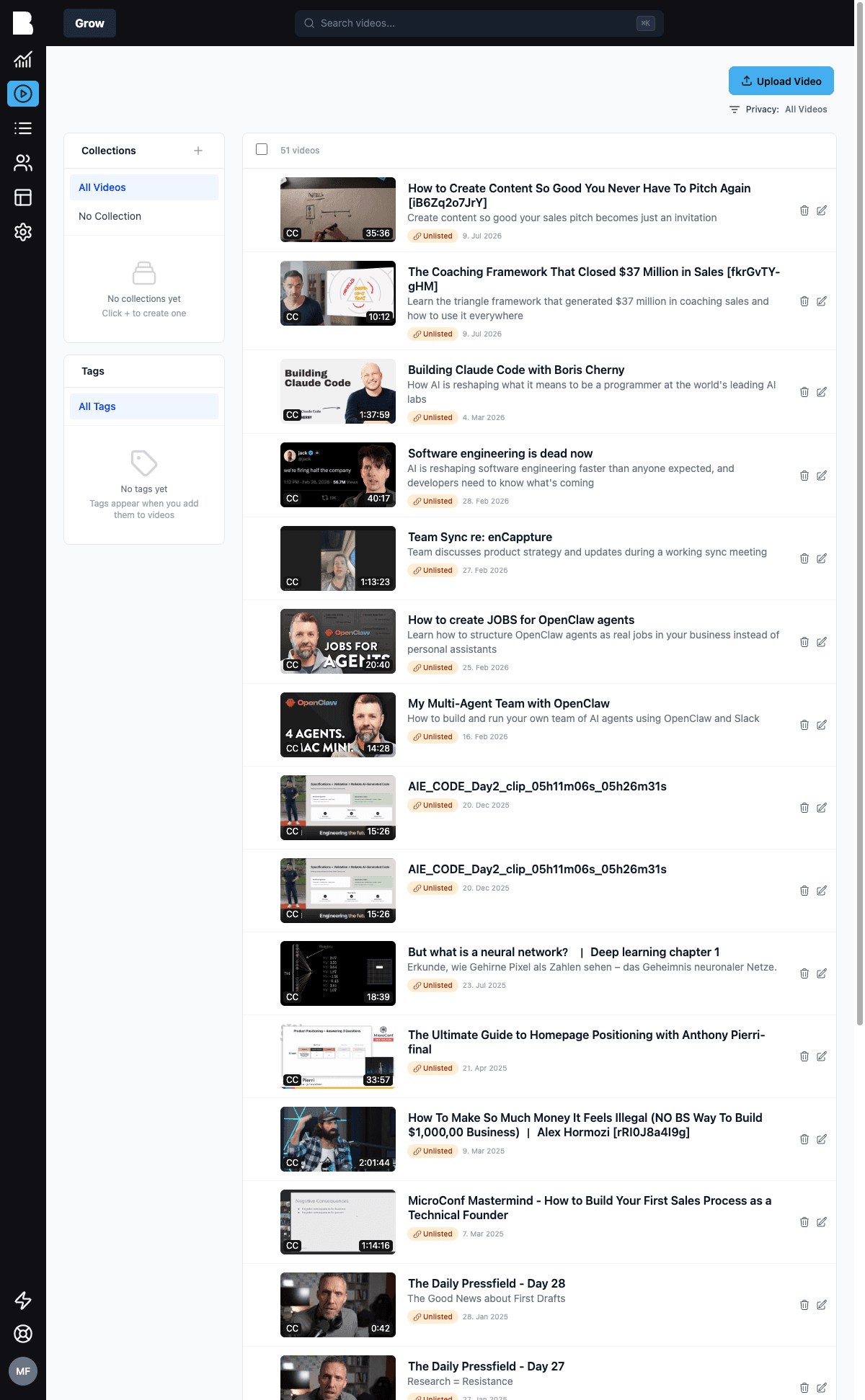
The library lists every video with its thumbnail, duration, title, teaser, visibility, and date. From here you can:
- Search your library with the search box (or press ⌘K anywhere in the admin panel)
- Filter by privacy status, collection, or tag using the sidebar
- Select multiple videos with the checkboxes for bulk actions
- Create collections directly from the sidebar
The video edit page
Click any video to open its edit page.
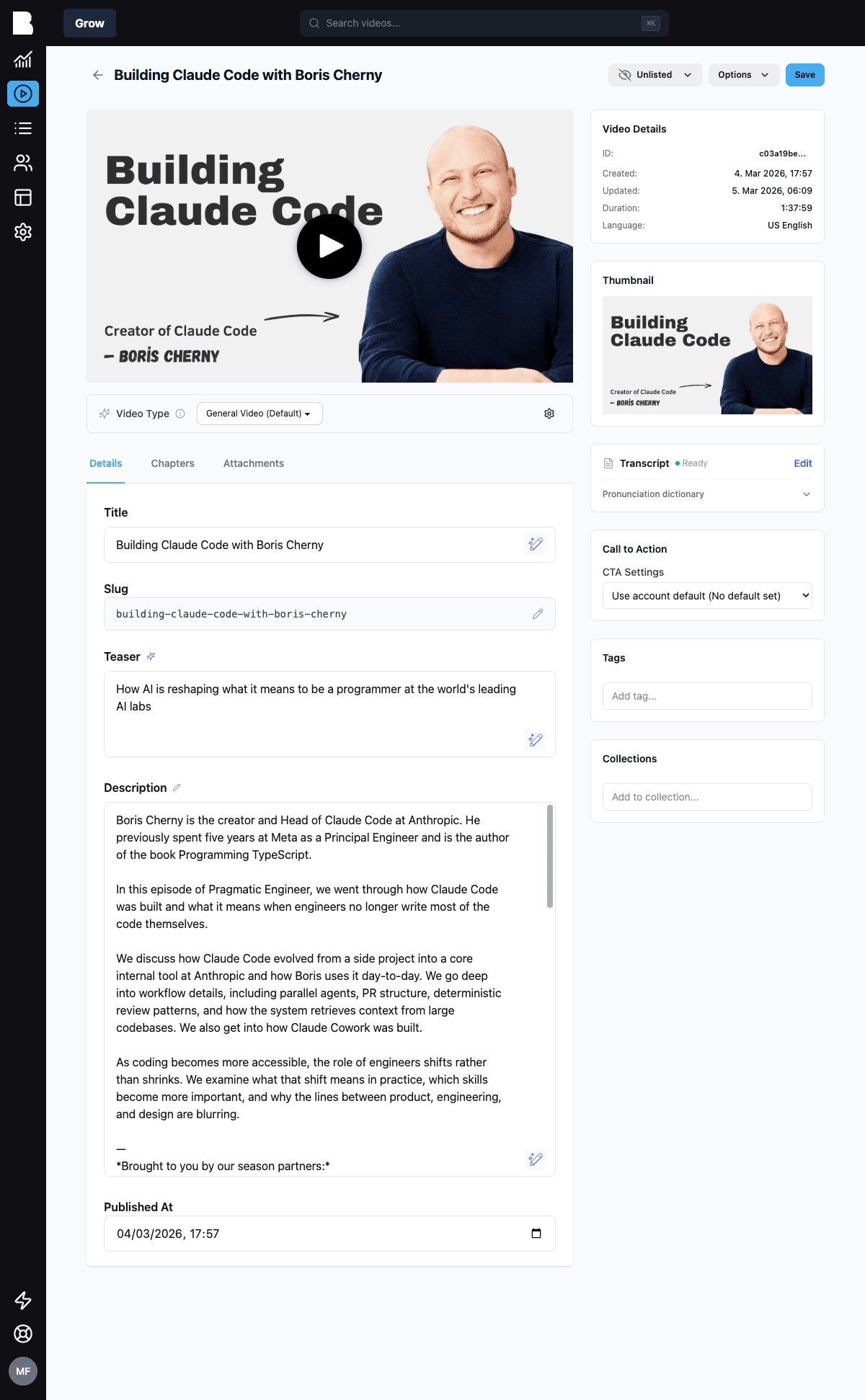
Details
The Details tab holds the core metadata. Every text field has an AI Actions menu (the sparkle button) with five options: Generate, Shorten, Make Punchier, Expand, and Simplify.
| Field | Notes |
|---|---|
| Title | Drafted by AI on upload; regenerate any time |
| Slug | URL-friendly identifier, used in portal URLs and the API |
| Teaser | A one-liner for cards and lists |
| Description | Longer copy; supports rich text |
| Published At | Set a publish date, useful for backdating imported content |
Each field shows a badge (AI Generated or Manually edited) so you always know where the text came from. Once you edit a field manually, Bold won't touch it again unless you explicitly regenerate it.
Video Type
Above the tabs you'll find the Video Type selector. The type (Podcast Episode, Training Session, Sales Call, All-Hands, …) tells the AI what to pay attention to when writing titles, teasers, descriptions, chapters, and the intelligence report. Pick the closest match, or define your own types.
Chapters
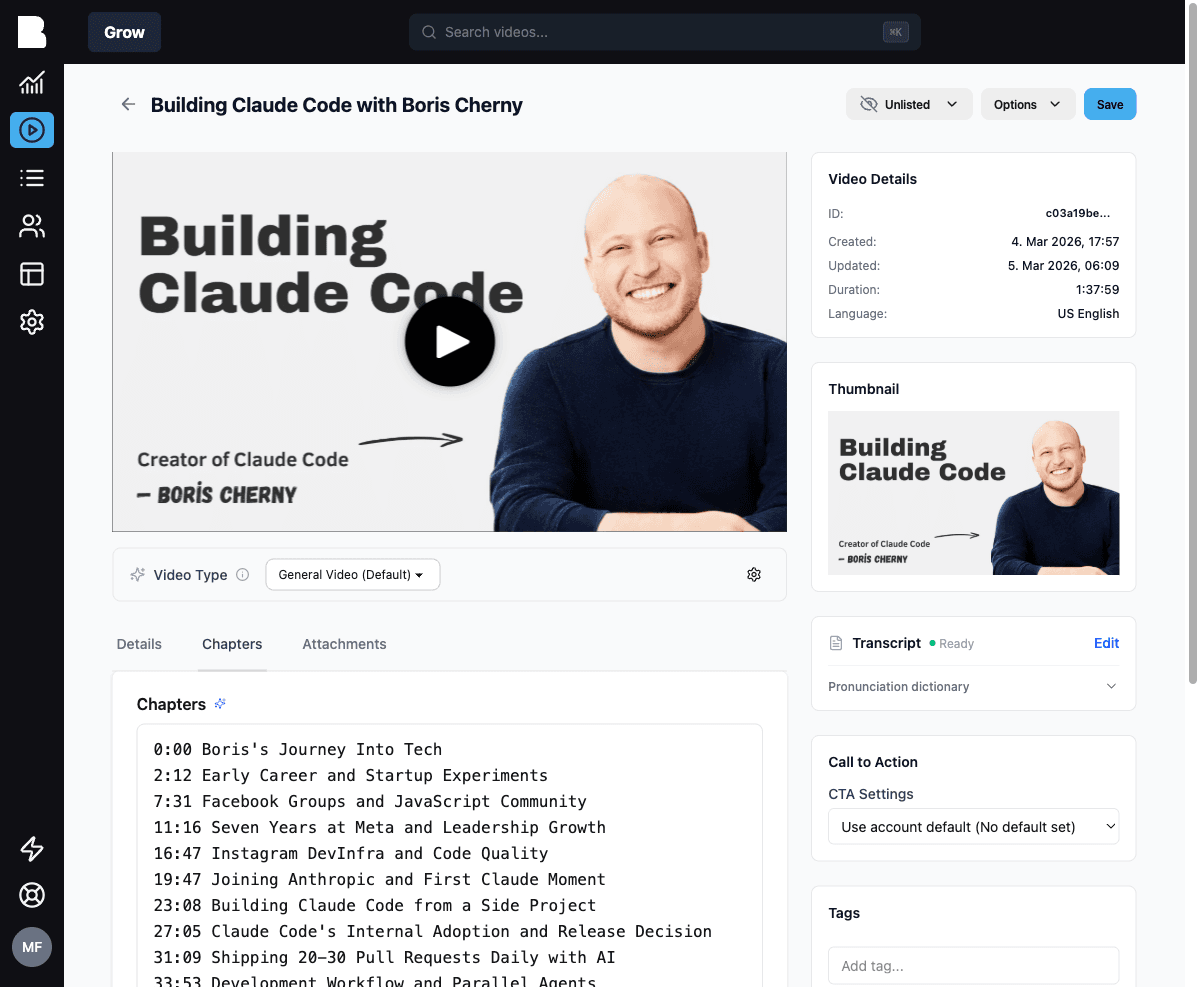
The Chapters tab shows AI-generated chapters as editable lines, each with a timestamp and a title. Fix a title, merge sections, or regenerate the whole list with AI Actions. Chapters appear in the player, the portal, and the API.
Attachments
Attach files to a video: worksheets, slides, templates. Attachments are delivered alongside the video in the portal and exposed via the API.
Sidebar: everything else
- Video Details: ID, created/updated timestamps, duration, detected language
- Thumbnail: upload a custom thumbnail or keep the auto-generated one
- Transcript: status plus a link to the transcript editor
- Call to Action: attach a CTA or use your account default
- Tags: freeform labels for filtering and API queries
- Collections: add the video to one or more collections
Visibility
The dropdown next to Save controls who can see the video:
| Visibility | Portal listing | Direct link | API (/videos) |
|---|---|---|---|
| Public | ✅ Listed | ✅ Works | ✅ Returned |
| Unlisted | ❌ Not listed | ✅ Works | ❌ Not returned |
| Private | ❌ Not listed | ❌ Admin only | ❌ Not returned |
New uploads start as Unlisted.
The Options menu
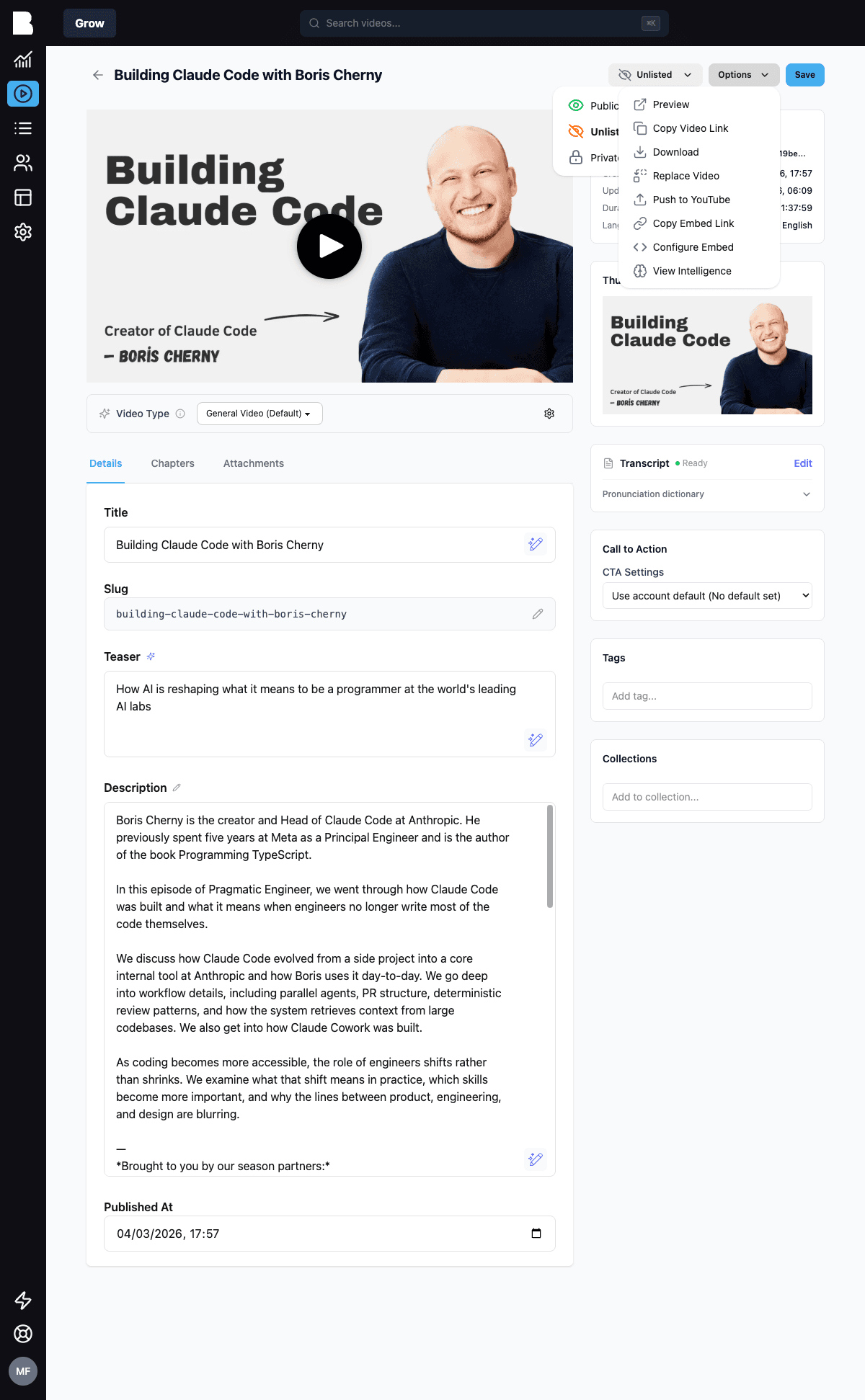
- Preview: open the video in your portal
- Copy Video Link: direct portal URL
- Download: the original-quality MP4
- Replace Video: swap the file, keep everything else
- Push to YouTube: publish this video to a connected YouTube channel
- Copy Embed Link / Configure Embed: see Embedding
- View Intelligence: the AI analysis report, see Video Intelligence