
Quickstart
From login to your first shared video
This guide takes you from an empty library to a published, AI-enriched video you can share or embed. It takes about ten minutes, most of which is Bold doing the work.
1. Upload a video
Go to Videos and click Upload Video. You can upload a file from your computer, or import directly from Google Drive or OneDrive. (Zoom and Microsoft Teams recordings can be imported automatically. See Integrations.)
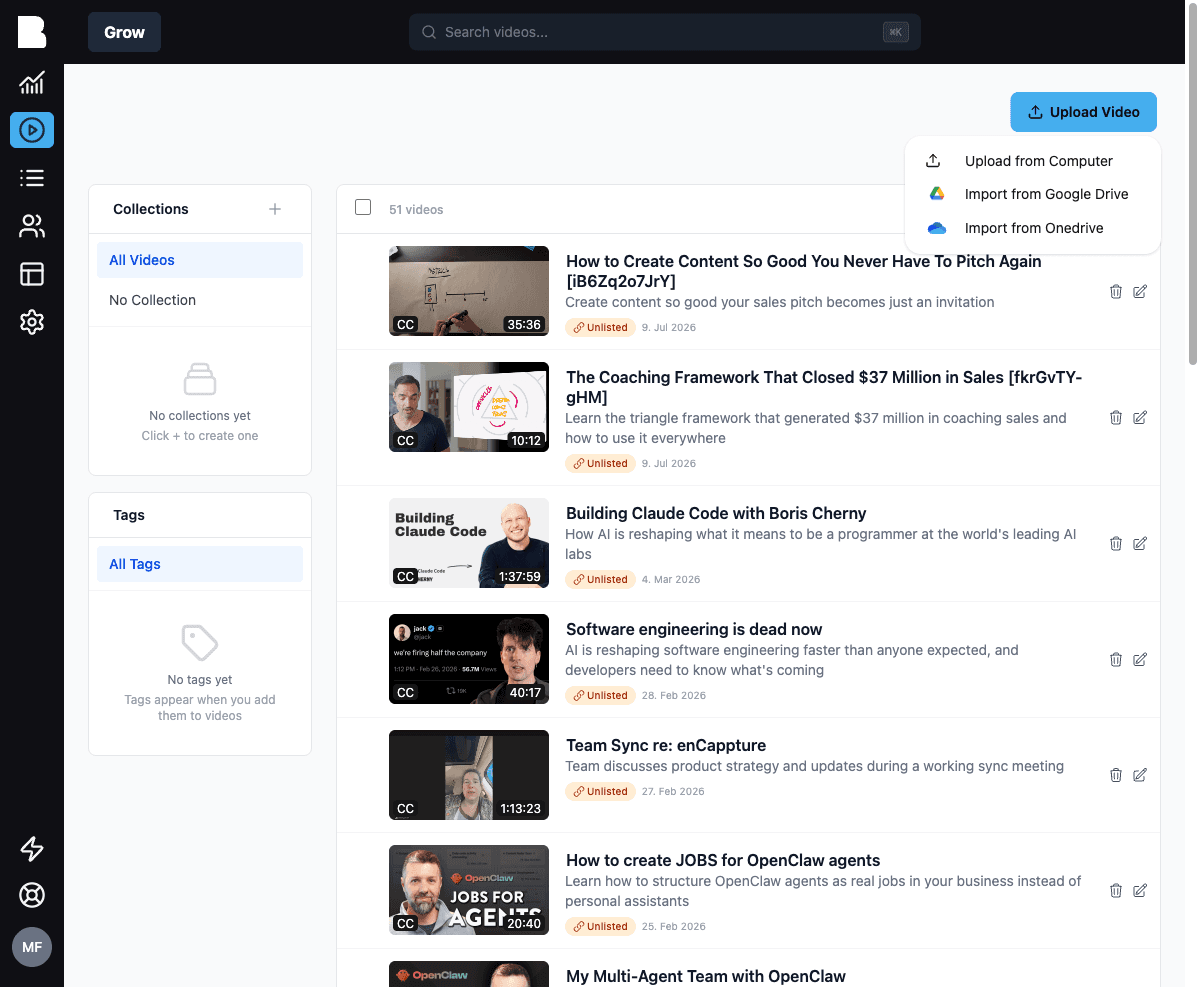
2. Let Bold process it
As soon as the upload finishes, Bold gets to work. Automatically, without any configuration, your video gets:
- A transcript with speaker detection
- Chapters with timestamps
- A title, teaser, and description
- Captions in your default language
- An intelligence report: a structured summary of topics, key points, and participants
Processing time depends on video length; a one-hour video typically takes a few minutes.
3. Review and refine
Open the video from your library. Everything Bold generated is editable, and each field has AI Actions (Generate, Shorten, Make Punchier, Expand, Simplify) if you want a different take. Fields keep a badge showing whether they're AI Generated or Manually edited, and Bold never overwrites your manual edits.
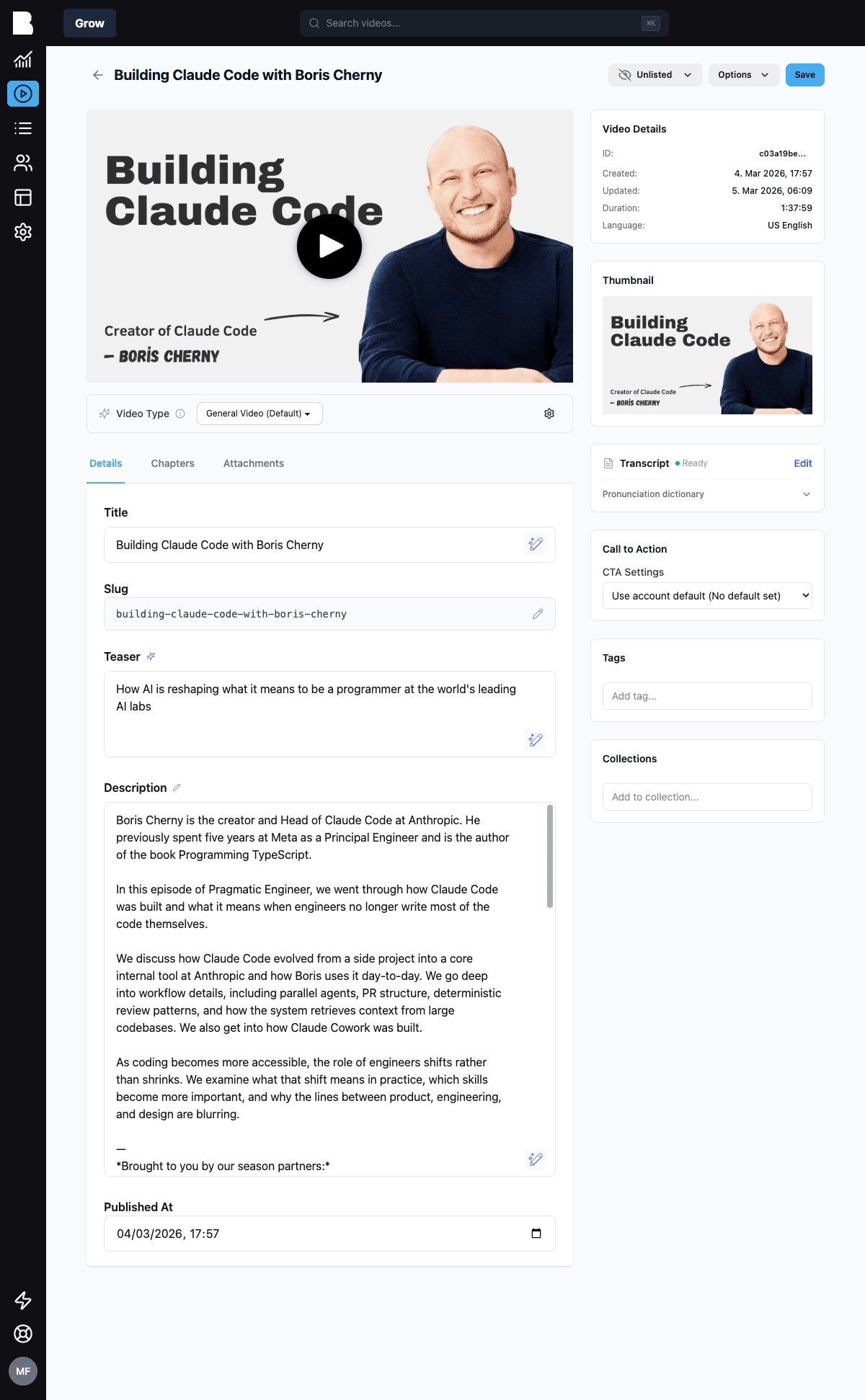
Set the right Video Type (podcast, training session, sales call, …) before regenerating metadata. It shapes how the AI writes titles, teasers, descriptions, and chapters. See Video Intelligence.
4. Set visibility
Videos start as Unlisted. Use the visibility dropdown at the top of the edit page to choose:
- Public: listed in your portal and returned by the public API
- Unlisted: accessible by direct link, but not listed
- Private: only visible in the admin panel
5. Share it
From the Options menu you can copy a direct link, preview the video in your portal, or grab an embed code. The embed dialog offers a clean standard player or an Enhanced Learning Experience with AI chat, chapters, and transcript built in.