
Your Portal
A branded home for your video library, hosted by Bold or fully custom
The portal is what your viewers see: your videos, playlists, search, and AI assistant under your brand. Bold gives you two ways to run it, and you choose under Settings → Channel Settings → Portal Type:
- Bold Hosted Portal: instant portal at
your-channel.boldvideo.com. No code required. - Custom Frontend (Headless): Bold is the engine, your site is the experience. Point Bold at your frontend's base URL and build with the API, SDK, or the Next.js starter.
Configuring the hosted portal
Everything lives under Portal in the main navigation, grouped into collapsible sections. Hit Save when you're done. Changes go live immediately.
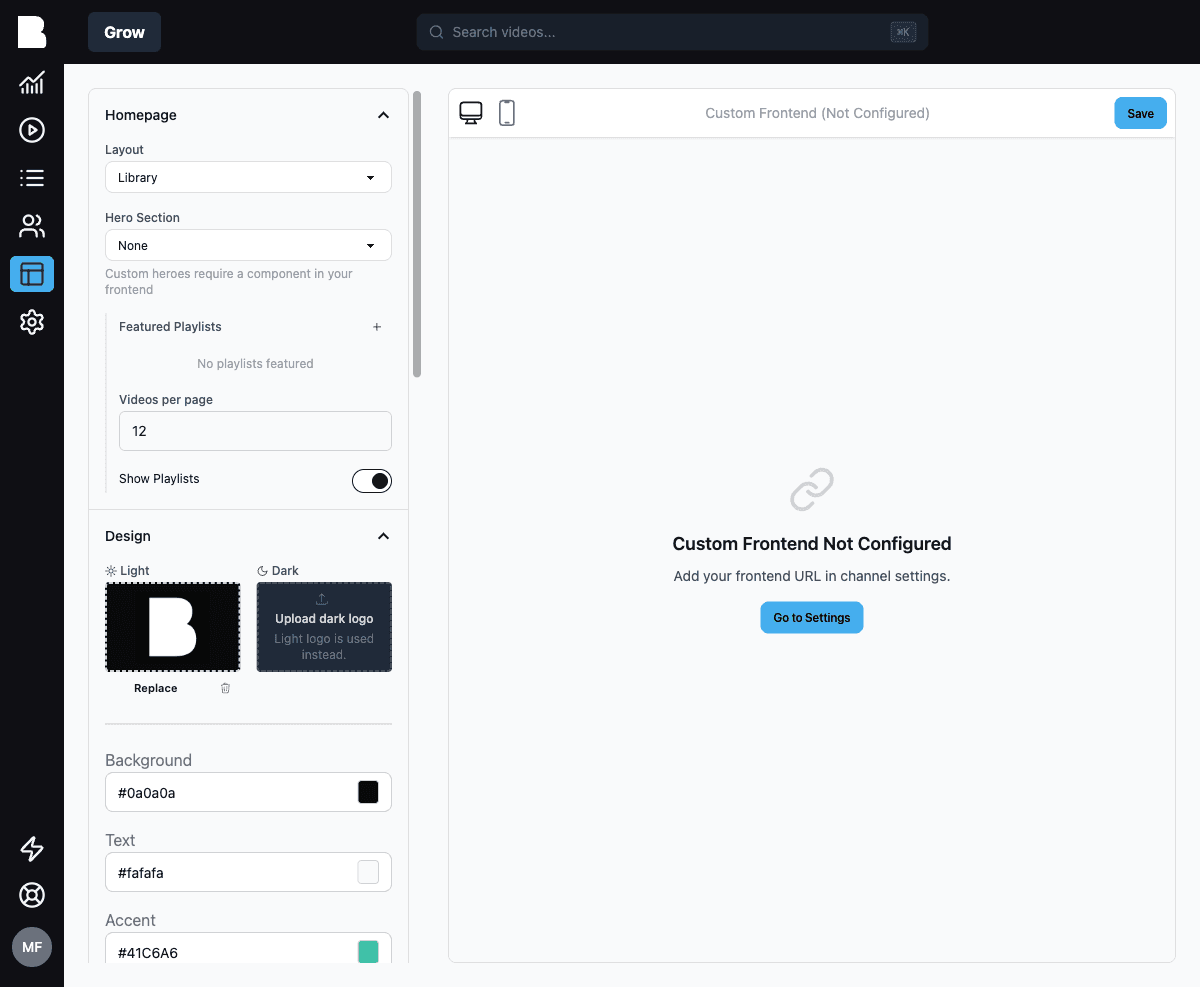
Homepage
- Layout: whether visitors land on your Library, the AI Assistant front and center, or None (custom)
- Hero Section: none, or a custom hero (custom heroes require a component in your own frontend)
- Videos per page: pagination size
Design
- Logos: separate light and dark mode logos
- Colors: background, text, and accent
- Fonts: heading and body fonts
- Header size, corner radius, video display style
Navigation
- Toggle the header, the search bar, and AI search
- Add menu links (managed under Settings → Main Menu)
Video Page
- Toggle transcripts and chapters panels on video pages
AI
- Chat disclaimer: optional text below the AI chat input, for legal or usage guidance
Access
- Public: anyone with the link
- Password Protected: one shared password for the portal
For per-member access with device limits and session control, use viewer sessions with your own auth provider.
Analytics
Connect Plausible, Google Analytics 4, or Fathom to track portal traffic with your own analytics account.
Custom Links
Short, branded URLs (your-portal.com/l/something) that redirect wherever you point them.
Advanced
Custom CSS is the escape hatch when the design controls aren't enough.
Plan availability
White-label portals (removing Bold branding) are available on Growth and Enterprise plans.
Going headless
Switch Portal Type to Custom Frontend and Bold stops being your viewers' destination and becomes your video backend. The Frontend Base URL you configure is used for preview links from the admin panel. From there:
- Fetch content and settings via the REST API
- Or use the JavaScript SDK: the portal configuration above (colors, menus, featured playlists) is all available via
bold.settings(), so your custom frontend can honor the same settings - Or start from the Next.js starter, which does both out of the box