
Video Intelligence
Structured AI analysis of every video, tuned by video type
Beyond titles and chapters, Bold compiles a structured intelligence report for every video: what it's about, the key takeaways, who's in it, and the details worth remembering. It's the difference between "a video file" and "knowledge you can query."
Viewing a report
Open a video and choose Options → View Intelligence.
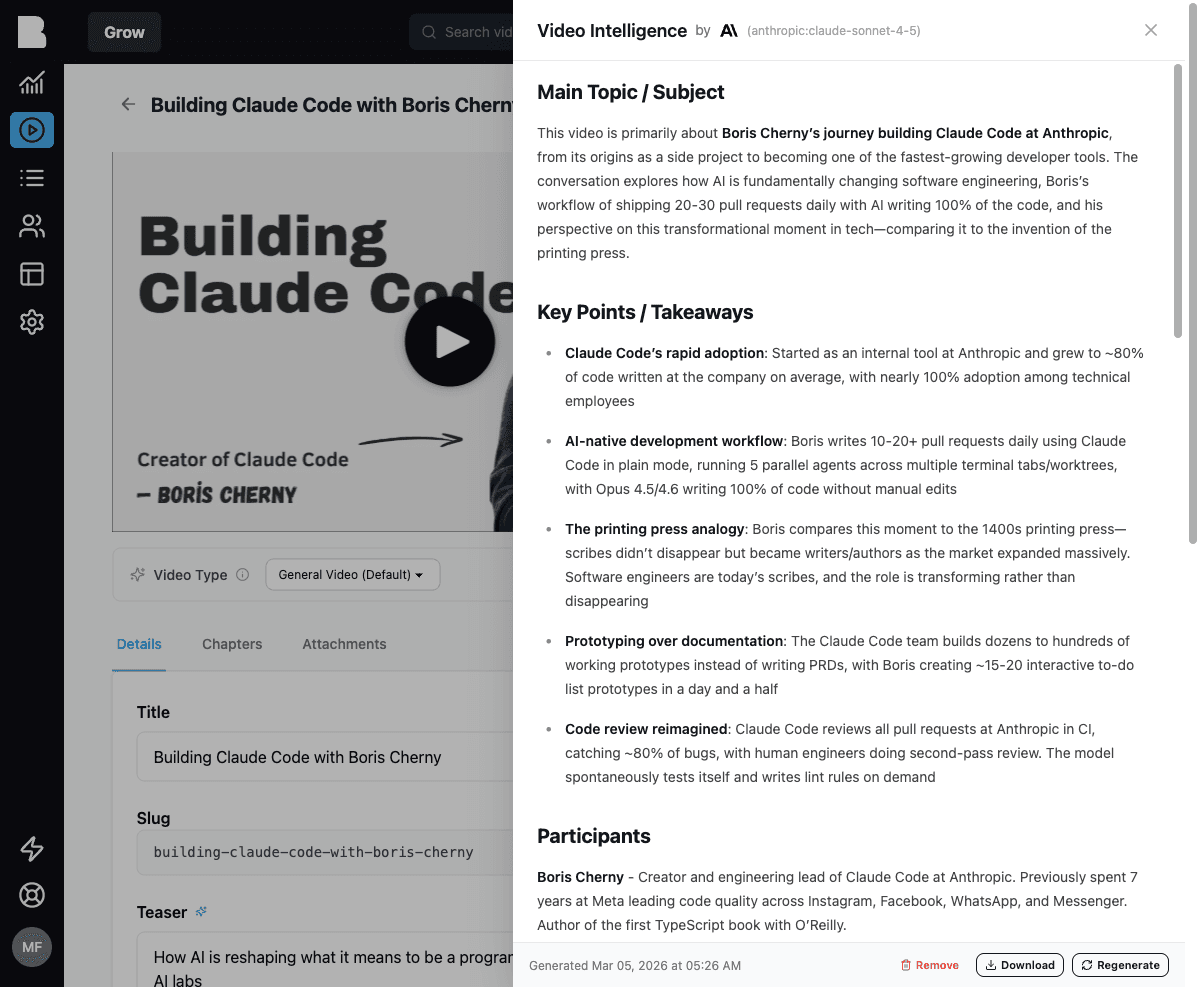
A report typically includes:
- Main topic / subject: a paragraph-level summary
- Key points / takeaways: the claims and lessons that matter
- Participants: who appears, with context
- Important details: dates, numbers, technical specifics
- Related topics: references, people, and concepts mentioned
You can Download the report, Regenerate it (for example after fixing the transcript), or Remove it.
Video Types
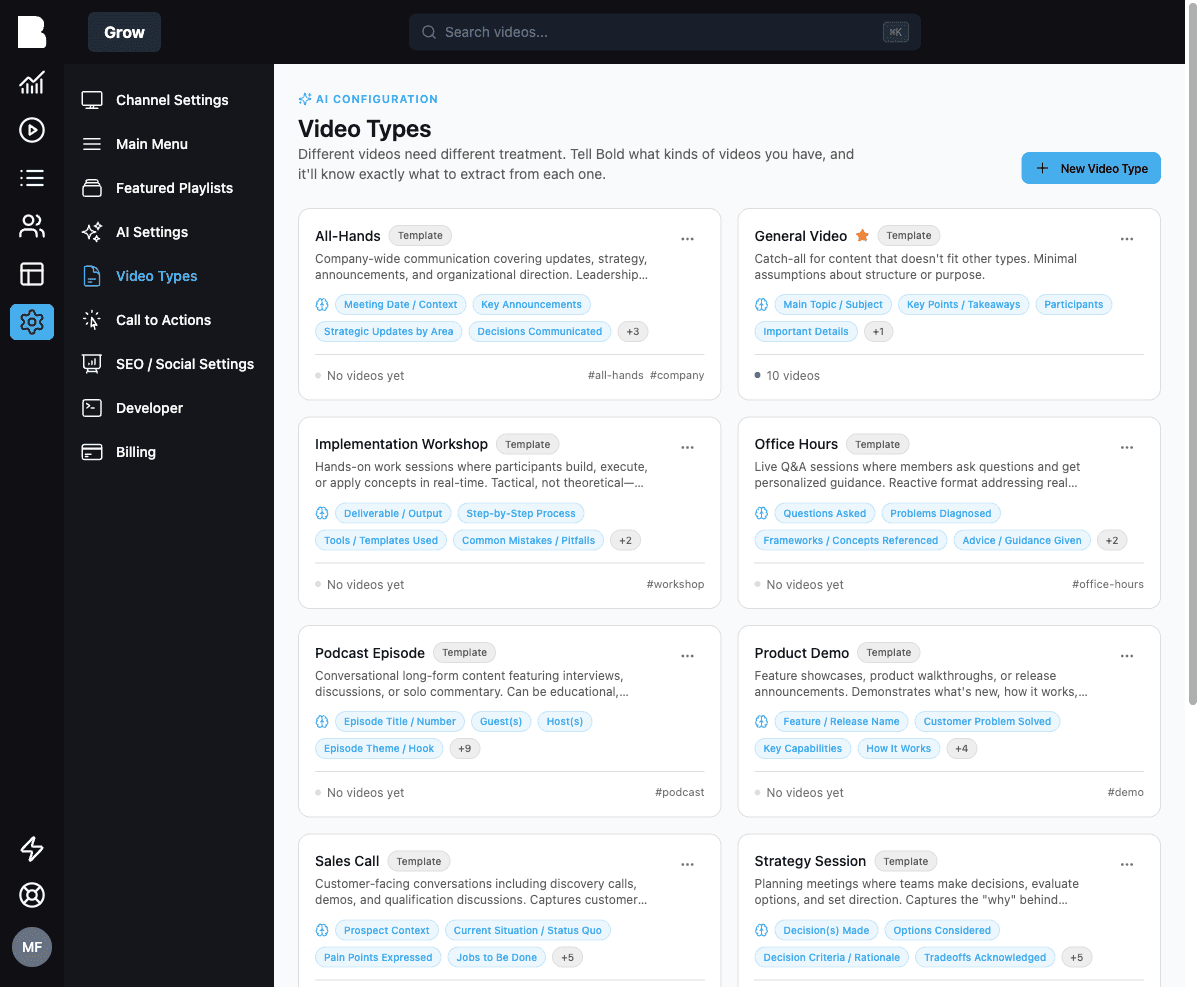
What the AI extracts depends on the video type. A sales call and a training session deserve different treatment, so Bold ships with a set of type templates, each with its own analysis sections:
| Type | Extracts (examples) |
|---|---|
| All-Hands | Key announcements, strategic updates, decisions communicated |
| Implementation Workshop | Deliverables, step-by-step process, tools used, common pitfalls |
| Office Hours | Questions asked, problems diagnosed, advice given |
| Podcast Episode | Guests, themes, notable quotes |
| General Video | Topic, key points, participants, important details |
Manage types under Settings → Video Types. You can edit the built-in templates or click New Video Type to define your own, with exactly the sections you want extracted.
The video type also steers how AI writes the title, teaser, description, and chapters. Setting the right type before generating metadata is the one AI setting that pays off most in Bold.
Assigning a type
On the video edit page, pick the type from the Video Type selector above the tabs. Videos default to General Video.