
Transcripts & Captions
Edit transcripts, assign speakers, and teach Bold your vocabulary
Every video in Bold is transcribed automatically, with speakers detected and separated. The transcript powers captions, search, AI chat, and chapters, so when the transcript is right, everything downstream gets better.
The transcript editor
Open a video and click Edit next to Transcript in the sidebar.
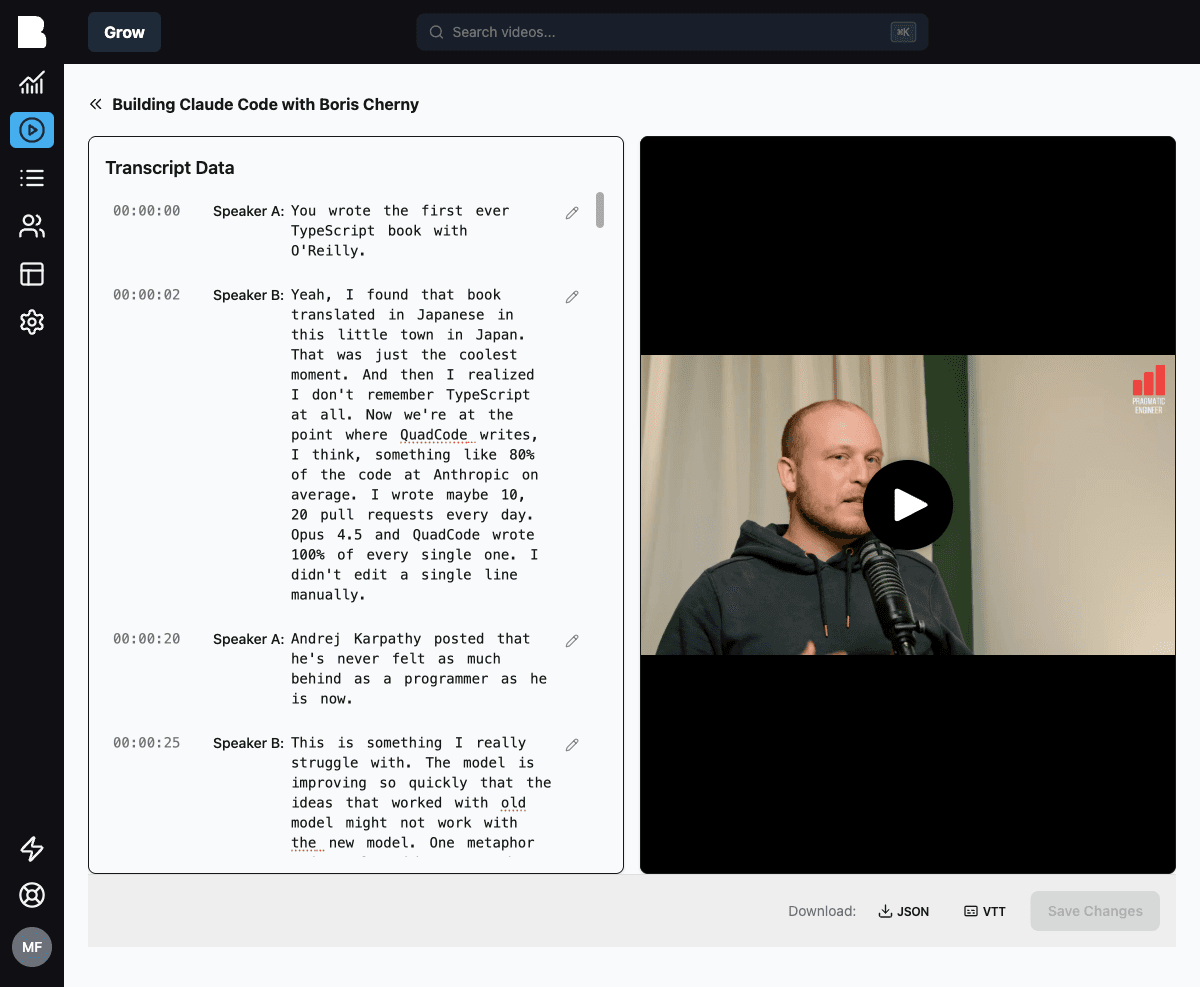
The editor shows the transcript segment by segment, synced to the video player:
- Edit text inline: click any segment to correct it
- Assign speakers: click a speaker label (Speaker A, B, C…) to name them
- Play along: the player follows your position, so you can verify against the audio
Save your changes and captions, search, and AI answers pick them up.
Transcription dictionary
Your content has vocabulary generic transcription gets wrong: product names, industry jargon, people's names. Add these to the Transcription Dictionary under Settings → Channel Settings: one word or term per line. Bold uses the dictionary to improve new transcriptions, and won't "correct" the words you've listed.
There's also a per-video pronunciation dictionary on the video edit page for terms that only matter for one recording.
Captions and subtitles
Captions are generated automatically in your Default Video Language (configurable in Channel Settings). Viewers can toggle them in the player. Look for the CC badge on videos in your library.
Chapters
Chapters are generated together with the transcript and are editable on the video's Chapters tab. See Managing Videos.
Plan availability
Same-voice AI translation (translated audio tracks in the original speaker's voice) is available on Growth and Enterprise plans.